
The Coverwork feature makes it easy to create, view, and manage cover assignments for your classes, whether you are assigning work yourself, receiving work from another teacher, or leaving work available for someone else to pick up.
Accessing Coverwork
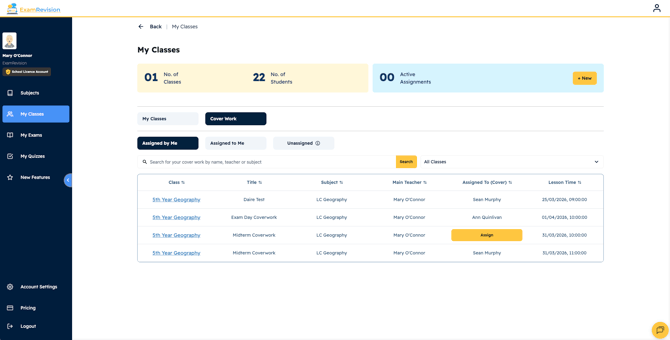
To access Coverwork from your ExamRevision account:
- Go to the My Classes tab in the left-hand sidebar.
- Click the Coverwork tab at the top.
From here, you will see three main tabs:
- Assigned by Me
- Assigned To Me
- Unassigned
You can also assign selected coverwork to selected teachers from this page.
Viewing Existing Coverwork
On the Coverwork page, you can open any cover assignment to view the materials included.
These may include:
- quizzes
- presentations
- notes
- videos
You can also open and access each of these resources directly from the cover assignment.
Understanding the Coverwork Tabs
Assigned by Me
This tab shows all coverwork that you have created and assigned.
Assigned To Me
This tab shows any coverwork that has been specifically assigned to you by another teacher.
Unassigned
This tab shows any coverwork that has been left unassigned by teachers in your school, making it easy for another teacher to take it on if needed.
Creating a New Cover Assignment
To create coverwork:
- Go to your chosen class.
- Click the Coverwork tab.
- Select New Cover Assignment.
- Fill in the assignment details as you would for a normal assignment.
- Add the time and date of the class.
- If needed, add an assigned teacher.
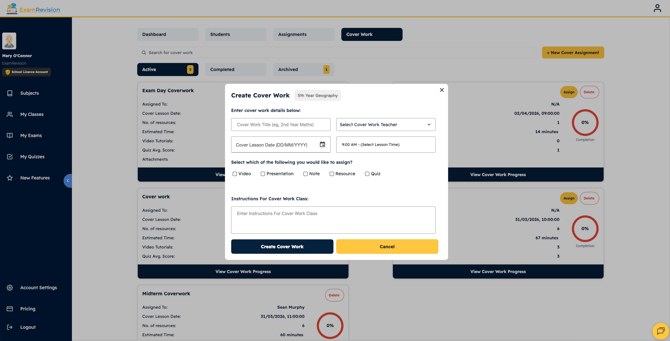
Once created, the cover assignment will be saved and can be viewed from the relevant Coverwork tab.
Assigning a Teacher
When creating coverwork, you can optionally assign it to a specific teacher.
If you assign a teacher, they will receive a notification in their ExamRevision account.
Video Tutorial👇